
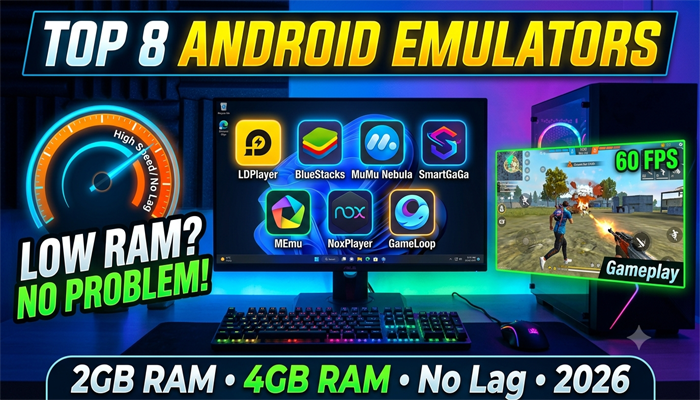
Best Lightweight Android Emulators for Low-End PC (2026) – Fast & Lag-Free Performance
After Microsoft officially ended support for the Windows Subsystem for Android (WSA) in March 2025, Android emulators became the only practical solution for running mobile apps and games on Windows PCs.
However, not every emulator performs well on budget computers. Installing a heavy emulator on a low-spec machine often results in slow boot times, lag, crashes, and poor gaming performance.
To help users choose the right option, we tested the most popular Android emulators on two entry-level systems:
System 1: Dual-Core Processor, 4GB RAM, Intel HD 630 Graphics
System 2: Intel Celeron Processor with 2GB RAM
Our testing focused on idle RAM usage, startup speed, and Free Fire gameplay performance.
How to Choose the Right Emulator
Selecting an emulator depends on your hardware rather than popularity.
According to RAM
2GB RAM
MuMu Nebula
SmartGaGa
3GB–4GB RAM
LDPlayer 9
6GB RAM or More
BlueStacks 5 (Eco Mode)
LDPlayer 14
Check Whether VT (Virtualization Technology) is Enabled
Open Command Prompt and type:
systeminfo
If VM Monitor Mode Extensions shows No, choose an emulator that supports No-VT mode, such as:
MuMu Nebula
SmartGaGa
NoxPlayer 7
No Dedicated Graphics Card?
A dedicated GPU is not required for every emulator.
These work smoothly with Intel HD or UHD Graphics:
MuMu Nebula
SmartGaGa
LDPlayer 9
MEmu Play
GameLoop performs significantly better when paired with a dedicated graphics card.
Windows 7 Compatibility
Most modern Android emulators require Windows 10 or Windows 11.
If you’re still using Windows 7, these remain reliable:
SmartGaGa
NoxPlayer 7
MEmu Play
LDPlayer 4 (32-bit)
RAM Usage & Performance Comparison (2026)
Emulator
Idle RAM
Peak RAM
Boot Time
VT Required
Minimum Windows
MuMu Nebula
400 MB
900 MB
3 Seconds
No
Windows 10
SmartGaGa
400 MB
1.5 GB
15 Seconds
No
Windows 7
LDPlayer 9
620 MB
1.8 GB
8 Seconds
Optional
Windows 10
MuMu Player 12
640 MB
2.5 GB
14 Seconds
Yes
Windows 10
LDPlayer 14
680 MB
2.1 GB
10 Seconds
Yes
Windows 10
MEmu Play
700 MB
1.6 GB
12 Seconds
Recommended
Windows XP SP3+
BlueStacks 5 Eco
740 MB
2.2 GB
18 Seconds
Yes
Windows 10 (1903+)
NoxPlayer 7
800 MB
1.2 GB
6 Seconds
No
Windows 7
GameLoop
850 MB
1.9 GB
20 Seconds
No-VT Mode
Windows 10
LDPlayer 4
860 MB
1.4 GB
22 Seconds
Recommended
Windows 7
Best Emulator for Free Fire
2GB RAM + No VT
Best Choice: SmartGaGa
Approximate Performance:
Around 60 FPS on Medium Graphics
4GB RAM + VT Enabled
Best Choice: LDPlayer 9
Performance:
Stable 30 FPS at 720p Resolution
4GB RAM + Dedicated GPU
Recommended:
GameLoop
LDPlayer 9
Expected FPS:
30–60 FPS
6GB+ RAM
Recommended:
LDPlayer 14
Performance:
60+ FPS with High Graphics
Detailed Review of the Best Android Emulators
1. LDPlayer 9 – Best Overall Emulator
LDPlayer 9 offers an excellent balance between performance and resource consumption. Based on Android 9, it supports both 32-bit and 64-bit applications.
Pros
Low RAM usage
Smooth gaming experience
Fast response
Stable FPS
Cons
Windows 10 or newer required
Requires approximately 36GB storage
2. MuMu Nebula – Best for 2GB RAM PCs
MuMu Nebula is designed specifically for entry-level computers without hardware virtualization.
Pros
Extremely lightweight
Boots within seconds
Excellent for low-end hardware
Cons
Limited to Android 7.1
Not suitable for modern high-end games
3. SmartGaGa – Best for Free Fire
SmartGaGa uses the Titan Engine, allowing it to bypass virtualization while delivering excellent gaming performance.
Pros
High FPS
Windows 7 support
Small installation size
Cons
Official website unavailable
Download only from trusted sources
4. BlueStacks 5 (Eco Mode)
BlueStacks remains one of the most feature-rich Android emulators.
Pros
Massive app compatibility
Excellent keyboard mapping
Android 9–13 support
Cons
Requires at least 4GB RAM
Heavy for older PCs
5. MEmu Play
MEmu is ideal for fixing graphical issues because users can instantly switch between DirectX and OpenGL.
Pros
Supports Windows XP to Windows 11
Flexible graphics settings
Cons
Slightly higher CPU usage
6. NoxPlayer 7
NoxPlayer includes built-in No-VT support, making it suitable for systems without virtualization.
Pros
Works even on low-end hardware
Stable No-VT engine
Cons
Higher idle RAM usage
Less frequent updates
7. GameLoop
Tencent’s official Android emulator is optimized for PUBG Mobile and other Tencent titles.
Pros
Built-in anti-cheat
Official game optimization
No-VT startup mode
Cons
Resource-intensive
Performs best with dedicated graphics
8. LDPlayer 14
LDPlayer 14 is built on Android 14 and targets modern gaming PCs.
Pros
Improved memory management
Better Windows 11 compatibility
Up to 30% faster performance
Cons
Requires VT enabled
Minimum 6GB RAM recommended
Windows 11 24H2 Users
The latest Windows security updates have enabled Virtualization-Based Security (VBS) by default, which may reduce emulator performance.
If your emulator crashes or fails to launch:
Update to the latest emulator version
Disable Memory Integrity from Windows Security
Run:
bcdedit /set hypervisorlaunchtype off
Restart your computer after making the changes.
Tips to Improve Emulator Performance
Enable VT from BIOS.
Allocate only 2 CPU cores and 2GB RAM if using a low-end PC.
Use 1280×720 or 960×540 resolution.
Lock FPS at 30 for smoother gameplay.
Use OpenGL for Intel graphics.
Use DirectX for AMD and NVIDIA GPUs.
Frequently Asked Questions
Which emulator is best for a 2GB RAM PC?
MuMu Nebula is ideal for everyday Android apps, while SmartGaGa delivers the best gaming performance for Free Fire on low-end systems.
Can I run Android emulators without a graphics card?
Yes. MuMu Nebula, SmartGaGa, LDPlayer 9, and MEmu Play work well with Intel HD or UHD integrated graphics.
Which Android emulators still support Windows 7?
SmartGaGa, NoxPlayer 7, MEmu Play, and LDPlayer 4 (32-bit) continue to work reliably on Windows 7.
Final Verdict
If your PC has limited hardware, choosing the right Android emulator can dramatically improve both gaming and app performance.
Best Overall: LDPlayer 9
Best for 2GB RAM: MuMu Nebula
Best Free Fire Emulator: SmartGaGa
Best Compatibility: BlueStacks 5
Best for Windows 7: MEmu Play
Best Official Gaming Emulator: GameLoop
Best High-End Choice: LDPlayer 14
Always match the emulator with your PC specifications instead of installing the most popular option. A lightweight emulator can provide a much smoother experience, even on older hardware.